How Airalo eSIM Works
A Complete Step-by-Step Process Guide
On This Page
Process Overview
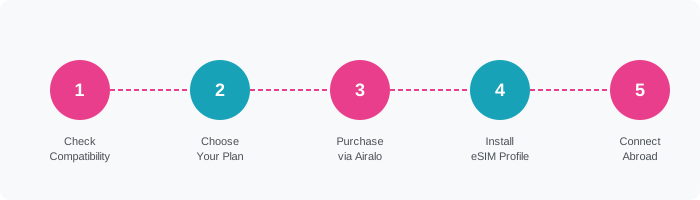
Using an Airalo eSIM involves five main stages: verifying compatibility, selecting and purchasing a plan, installing the eSIM profile, configuring your device, and connecting abroad. Each stage is straightforward, but attention to detail — particularly during installation — is important to avoid common pitfalls.
The entire process from purchase to activation typically takes less than 10 minutes on a compatible device with a good Wi-Fi connection. The most common source of difficulty is APN configuration, which is covered in detail below.
Step-by-Step Guide
Verify Device Compatibility
Before purchasing, confirm that your smartphone supports eSIM. Check our compatibility guide or look for "eSIM" in your device's Settings under Cellular/Mobile Data. If you do not see an eSIM option, your device may not support it, or it may be carrier-locked.
Also check: Ensure your device is not SIM-locked to your UK carrier. Contact your operator to unlock it if necessary — this is free for most UK operators after your contract period.
Choose Your Airalo Plan
Open the Airalo app or visit airalo.com. Search for your destination country. Review available plans, comparing data allowance, validity period, network speed, and price. Use our pricing guide to help assess value.
Tip: For multi-country trips, consider a regional plan. For a single destination, a local plan usually offers better value per GB.
Purchase Your Plan
Complete the purchase via the Airalo app or website. Payment is accepted by major credit/debit cards and some digital wallets. You will receive a confirmation email containing your QR code and activation instructions.
Important: Do not scan the QR code until you are ready to install the eSIM. Each QR code can only be used once.
Install the eSIM Profile
Connect to Wi-Fi. Open your device's eSIM settings (see platform-specific instructions below). Scan the QR code provided by Airalo. Your device will download the eSIM profile — this takes 30–90 seconds. Label the new eSIM (e.g., "Japan Trip") for easy identification.
Configure SIM Settings
After installation, configure which SIM handles which functions. For most travellers: set your home SIM for calls and texts; set the Airalo eSIM for data. Enable data roaming on the Airalo eSIM if prompted.
Configure APN (if required)
Some Airalo plans require manual APN configuration. The correct APN details are available in your Airalo account under the plan details. On iOS, this is usually automatic. On Android, you may need to add the APN manually in Settings → Network → Mobile Networks → Access Point Names.
Travel and Connect
Upon arrival in your destination country, switch your active data SIM to the Airalo eSIM. Allow 2–5 minutes for the device to register on the local network. Open a browser to test connectivity. If data does not work, check the APN settings and ensure data roaming is enabled for the Airalo SIM.
Monitor Your Usage
Track your data usage via the Airalo app or your device's built-in data monitor. If you are approaching your allowance, consider purchasing a top-up (if available for your plan) or a new plan.
iOS-Specific Instructions
On iPhone (iOS 12.1 or later with eSIM support):
- Go to Settings → Cellular → Add eSIM (or "Add Cellular Plan" on older iOS versions).
- Select "Use QR Code" and scan the Airalo QR code.
- Tap "Continue" through the prompts to download the profile.
- When asked to label the plan, enter a descriptive name.
- Go to Settings → Cellular → Cellular Data and select your Airalo eSIM as the data line.
- Enable Data Roaming for the Airalo eSIM line.
- APN settings are typically configured automatically on iOS.
For iPhone 15 and later (eSIM-only models in some regions): the process is the same, but you manage all SIMs digitally.
Android-Specific Instructions
Android instructions vary by manufacturer and OS version. The general process for Android 10 and later:
- Go to Settings → Network & Internet → SIMs (or "Mobile Network" on Samsung devices).
- Tap "Add SIM" or "Add eSIM".
- Select "Scan QR code" and scan the Airalo QR code.
- Follow the on-screen prompts to complete installation.
- Set the Airalo eSIM as your preferred data SIM in SIM management settings.
- Enable Data Roaming for the Airalo SIM.
- If data does not work, manually configure the APN using the details from your Airalo account.
Common Issues and Solutions
eSIM profile failed to download
No data connection after arrival
QR code already used / invalid
Data speeds are very slow
eSIM option not visible in settings
After Your Trip
When you return to the UK, switch your active data SIM back to your home SIM. Your Airalo eSIM profile will remain on your device and can be reactivated for future trips to the same destination (if the plan is still valid) or deleted to free up an eSIM slot.
Note that most devices support a limited number of stored eSIM profiles (typically 5–20). If you travel frequently, you may need to delete old profiles to make room for new ones.
For questions about managing your Airalo account or plans, see our FAQ or contact us.